







A comprehensive Neovim plugin that provides modern markdown editing capabilities, implementing features found in popular editors like Typora, Mark Text, and Obsidian.
Key Features: Zero dependencies • Works with any filetype • Full test coverage (85%+) • Extensively documented
- Why markdown-plus.nvim?
- Quick Start
- Features
- Requirements
- Installation
- Usage
- Keymaps Reference
- Configuration
- Customizing Keymaps
- Contributing & Development
- License
markdown-plus.nvim brings the best markdown editing experience to Neovim with several key advantages:
- Zero Dependencies: No external dependencies required - just install and go
- Universal Compatibility: Works with any filetype, not just markdown (great for plain text, notes, org files, etc.)
- Battle-Tested: 85%+ test coverage ensures reliability and stability
- Modern Features: Implements features from popular editors like Typora, Mark Text, and Obsidian
- Extensively Documented: Comprehensive documentation with examples for every feature
- Actively Maintained: Regular updates, quick bug fixes, and responsive to community feedback
- Flexible Configuration: Modular feature system - enable only what you need
- Smart Defaults: Works out of the box with sensible keymaps that respect your existing configuration
Using lazy.nvim:
{
  "yousefhadder/markdown-plus.nvim",
  ft = "markdown",
}
That's it! The plugin will automatically activate with default keymaps when you open a markdown file.
Want to customize?
{
  "yousefhadder/markdown-plus.nvim",
  ft = "markdown",
  config = function()
    require("markdown-plus").setup({
      -- Your custom configuration here
    })
  end,
}
See Configuration for all available options.
List Management


- Auto-create next list item: Press Enter to automatically continue lists
- Normal mode list creation: Use
o/Oin normal mode to create new list items - Smart list indentation: Use Tab/Shift+Tab to indent/outdent list items
- Auto-renumber ordered lists: Automatically renumber when items are added/deleted
- Smart backspace: Remove list markers when backspacing on empty items
- List breaking: Press Enter twice on empty list items to break out of lists
- Checkbox support: Works with all list types (e.g.,
- [ ],1. [ ],a. [x]) - Multiple list types: Supports unordered (
-,*,+), ordered (1.,2.), letter-based (a.,A.), and parenthesized variants (1),a),A)) - Nested lists: Full support for nested lists with proper renumbering
Text Formatting

- Toggle bold:
<leader>mbto toggle**bold**formatting on selection or word - Toggle italic:
<leader>mito toggle*italic*formatting on selection or word - Toggle strikethrough:
<leader>msto toggle~~strikethrough~~formatting on selection or word - Toggle inline code:
<leader>mcto toggle`code`formatting on selection or word - Clear all formatting:
<leader>mCto remove all markdown formatting from selection or word - Smart word detection: Works with words containing hyphens (
test-word), dots (file.name), and underscores (snake_case) - Visual and normal mode: All formatting commands work in both visual selection and normal mode (on current word)
Headers & Table of Contents
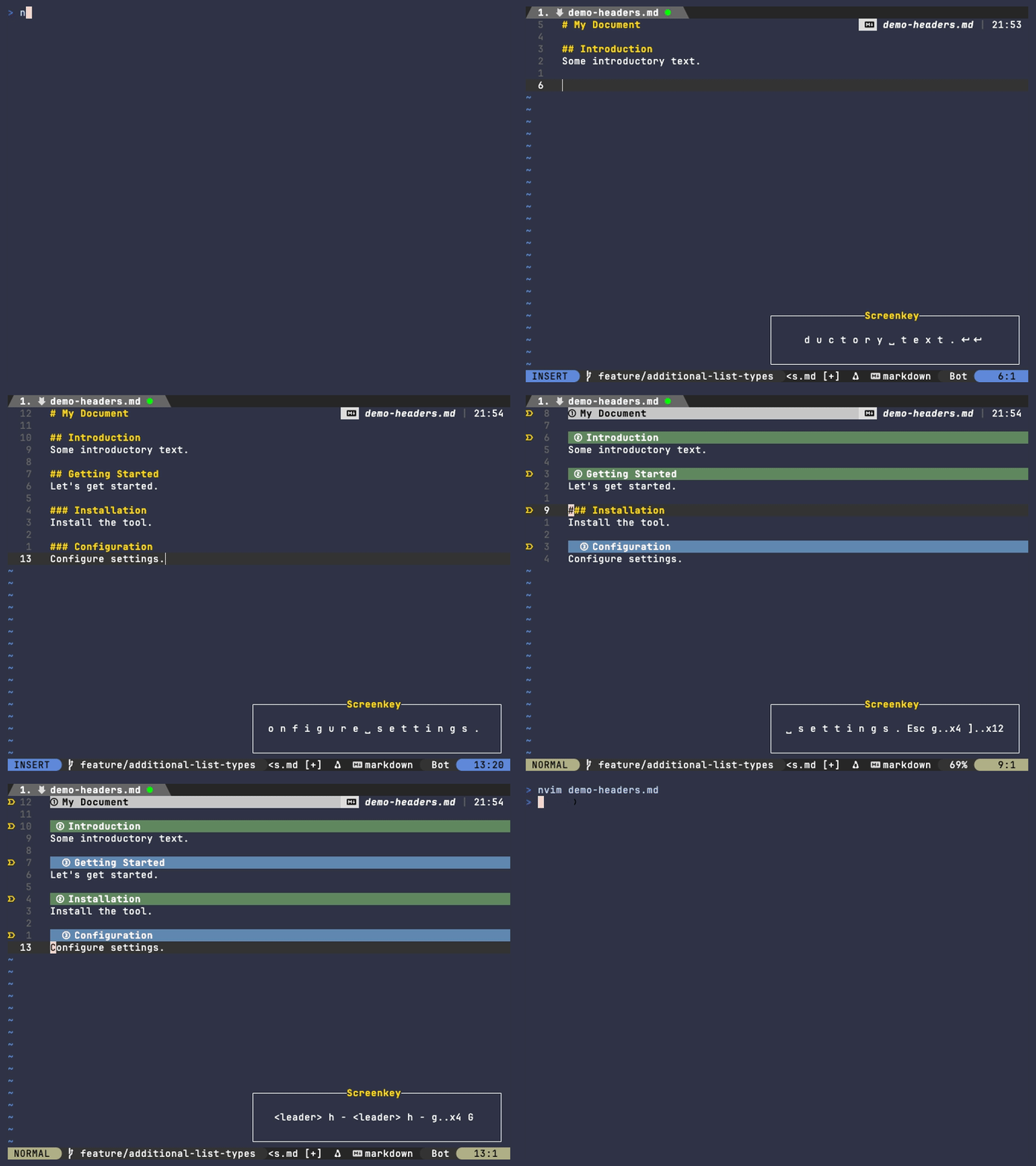
- Header navigation: Jump between headers with
]](next) and[[(previous) - Promote/demote headers: Increase/decrease header importance with
<leader>h+and<leader>h- - Set header level: Quickly set header level 1-6 with
<leader>h1through<leader>h6 - Generate TOC: Auto-generate table of contents with
<leader>ht(uses HTML markers to prevent duplicates) - Update TOC: Refresh existing TOC with
<leader>huafter modifying headers - Follow TOC links: Press
gdon a TOC link to jump to that header - Smart TOC placement: TOC appears right before first section (after introduction text)
- Code block aware: Headers inside code blocks are correctly ignored
- GitHub-compatible slugs: Anchor links work correctly on GitHub (handles
Q&A,C++, etc.)
Links & References

- Insert link:
<leader>mlto insert a new markdown link with text and URL - Convert selection to link: Select text and
<leader>mlto convert it to a link - Edit link:
<leader>meon a link to edit its text and URL - Open links: Use
gx(native Neovim) to open links in your browser - Auto-convert URL:
<leader>maon a URL to convert it to a markdown link - Reference-style links: Convert between inline
[text](url)and reference[text][ref]styles - Convert to reference:
<leader>mRto convert inline link to reference-style - Convert to inline:
<leader>mIto convert reference link to inline - Smart URL detection: Works with bare URLs and properly formatted links
Quotes Management

- Toggle blockquote: Use
<leader>mqto toggle>blockquote formatting on the current line or visual selection. - Visual and normal mode: Works in both visual selection and normal mode.
- Neovim 0.11+ (uses modern Lua APIs)
- No external dependencies
Using lazy.nvim (Recommended)
{
  "yousefhadder/markdown-plus.nvim",
  ft = "markdown",  -- Load on markdown files by default
  config = function()
    require("markdown-plus").setup({
      -- Configuration options (all optional)
      enabled = true,
      features = {
        list_management = true,  -- Enable list management features
        text_formatting = true,  -- Enable text formatting features
        headers_toc = true,      -- Enable headers and TOC features
        links = true,            -- Enable link management features
      },
      keymaps = {
        enabled = true,  -- Enable default keymaps
      },
      filetypes = { "markdown" },  -- Filetypes to enable the plugin for
    })
  end,
}
Using with multiple filetypes:
{
  "yousefhadder/markdown-plus.nvim",
  ft = { "markdown", "text", "txt" },  -- Load on multiple filetypes
  config = function()
    require("markdown-plus").setup({
      filetypes = { "markdown", "text", "txt" },  -- Enable for these filetypes
    })
  end,
}
Using LuaRocks
# Install via LuaRocks
luarocks install markdown-plus.nvim

# Or install development version
luarocks install --server=https://luarocks.org/dev markdown-plus.nvim
Then add to your Neovim configuration:
-- No plugin manager needed, already installed via LuaRocks
require("markdown-plus").setup({
  -- Your configuration here
})
Using packer.nvim
use {
  "yousefhadder/markdown-plus.nvim",
  ft = "markdown",
  config = function()
    require("markdown-plus").setup()
  end,
}
Manual Installation
- Clone this repository to your Neovim configuration directory:
cd ~/.config/nvim
git clone https://github.com/yousefhadder/markdown-plus.nvim- Add to your
init.lua:
require("markdown-plus").setup()The plugin automatically activates when you open a markdown file (.md extension). All features work seamlessly with Neovim's built-in functionality.
List Management Examples
- Type your first item and press Enter
- The next item is automatically created ⬅️ (cursor here)- [ ] Press Enter after this unchecked item
- [ ] Next checkbox item is created ⬅️ (cursor here)
1. [x]
2. [ ]- Top level item
- Press Tab to indent ⬅️ (cursor here)
- Press Tab again for deeper nesting
- Press Shift+Tab to outdent ⬅️ (cursor here)- Type your item
-
⬆️ Press Enter on empty item, then Enter again to break out:
Regular paragraph text continues here.- Type some text, then delete it all
- ⬅️ Press Backspace here to remove the bullet entirely- Position cursor on this list item
- Press 'o' to create next item ⬅️ (new item appears below)
- Press 'O' to create previous item ⬅️ (new item appears above)
1. Works with ordered lists too
2. Press 'o' to create item 3 below ⬅️
3. Press 'O' to create item between 2 and 3 ⬅️
a. Letter-based lists supported
b. Press 'o' for next letter ⬅️
c. Press 'O' for previous letter ⬅️
1) Parenthesized lists work too
2) Auto-increments correctly ⬅️Text Formatting Examples
Position cursor on word and press <leader>mb:
text → **text**
**text** → text (toggle off)

Or select text in visual mode and press <leader>mb:
Select "this text" → **this text**Position cursor on word and press <leader>mi:
text → *text*
*text* → text (toggle off)Position cursor on word and press <leader>ms:
text → ~~text~~
~~text~~ → text (toggle off)Position cursor on word and press <leader>mc:
text → `text`
`text` → text (toggle off)Position cursor on formatted word and press <leader>mC:
**bold** *italic* `code` → bold italic code
Or select complex formatted text and press <leader>mC:
This **bold** and *italic* text → This bold and italic textWorks with special characters in words:
test-with-hyphens → **test-with-hyphens** (entire word formatted)
file.name.here → *file.name.here* (entire word formatted)
snake_case_word → `snake_case_word` (entire word formatted)Select any text in visual mode and format it:
1. Enter visual mode with 'v'
2. Select the text you want to format
3. Press <leader>mb (or mi, ms, mc, mC)
4. The entire selection will be formatted
Example: Select "multiple words here" → **multiple words here**Headers & TOC Examples
Use ]] and [[ to jump between headers quickly:
# Main Title       ← Press ]] to jump here
Content
## Section 1       ← Press ]] to jump here
Content
### Subsection    ← Press ]] to jump here
Content
Press [[ to jump backwardsPosition cursor on any header and adjust its level:
### Subsection ← Press <leader>h+ → ## Subsection (promoted)
## Section ← Press <leader>h- → ### Section (demoted)Position cursor on any line:
Regular text ← Press <leader>h2 → ## Regular text
Already header ← Press <leader>h4 → #### Already header# My Document
Press <leader>ht to generate TOC:
<!-- TOC -->
## Table of Contents
- [Section 1](#section-1)
- [Subsection 1.1](#subsection-1-1)
- [Section 2](#section-2)
<!-- /TOC -->
## Section 1
...Note: The TOC is wrapped in HTML comment markers <!-- TOC --> and <!-- /TOC -->. This prevents duplicate TOCs from being created if you press <leader>ht again. To update an existing TOC, use <leader>hu instead.
After adding/removing/renaming headers:
1. Press <leader>hu to update the TOC
2. All links are regenerated automatically
3. The content between <!-- TOC --> and <!-- /TOC --> is replaced## Table of Contents
- [Getting Started](#getting-started) ← Position cursor here
- [API & SDK](#api--sdk)
- [Q&A](#qa)
Press gd to jump directly to that header!
## Getting Started ← You jump here instantly!# API Documentation
## Q&A → TOC link: [Q&A](#qa)
## API & SDK → TOC link: [API & SDK](#api--sdk)
## C++ Examples → TOC link: [C++ Examples](#c-examples)
## What's New? → TOC link: [What's New?](#whats-new)
All links work correctly on GitHub! ✓# Document
## Real Section
\`\`\`bash
# This is NOT in the TOC
## Neither is this
\`\`\`
Press <leader>ht → Only "Real Section" appears in TOC ✓Links & References Examples
In normal mode, press <leader>ml:
1. You'll be prompted: "Link text: "
2. Enter the text (e.g., "GitHub")
3. You'll be prompted: "URL: "
4. Enter the URL (e.g., "https://github.com")
5. Result: [GitHub](https://github.com)Select text in visual mode:
Visit my website ← Select "my website" with visual mode
Press <leader>ml:
1. You'll be prompted: "URL: "
2. Enter URL (e.g., "https://example.com")
3. Result: Visit [my website](https://example.com)Position cursor anywhere on a link and press <leader>me:
[Old Text](https://old-url.com) ← cursor here
Press <leader>me:
1. Link text: Old Text (edit or press Enter)
2. URL: https://old-url.com (edit or press Enter)
Result: [New Text](https://new-url.com)Use native Neovim functionality:
[Google](https://google.com) ← Position cursor here
Press gx to open in browser
https://example.com ← Works on bare URLs too
Press gx to openPosition cursor on a URL and press <leader>ma:
Check out https://github.com/yousefhadder/markdown-plus.nvim
Press <leader>ma:
1. Link text (empty for URL): GitHub Plugin
2. Result: Check out [GitHub Plugin](https://github.com/yousefhadder/markdown-plus.nvim)
Or leave text empty to use URL as text:
Result: [https://github.com/yousefhadder/markdown-plus.nvim](https://github.com/yousefhadder/markdown-plus.nvim)Convert inline link to reference-style with <leader>mR:
[Documentation](https://docs.example.com) ← cursor here
Press <leader>mR:
Result:
[Documentation][documentation]
... (at end of document)
[documentation]: https://docs.example.com
---
Convert reference link to inline with <leader>mI:
[My Link][myref] ← cursor here
... (elsewhere in document)
[myref]: https://myref.com
Press <leader>mI:
Result: [My Link](https://myref.com)When converting links with the same text and URL to reference-style,
the reference is reused:
Check out [GitHub](https://github.com) for code.
Visit [GitHub](https://github.com) to see projects.
Press <leader>mR on both:
Result:
Check out [GitHub][github] for code.
Visit [GitHub][github] to see projects.
[github]: https://github.com ← Only one definition
---
Links with different text create separate references even with same URL:
[dotfiles](https://github.com/yousefhadder/dotfiles)
[My Dotfiles](https://github.com/yousefhadder/dotfiles)
Press <leader>mR on both:
Result:
[dotfiles][dotfiles]
[My Dotfiles][my-dotfiles]
[dotfiles]: https://github.com/yousefhadder/dotfiles
[my-dotfiles]: https://github.com/yousefhadder/dotfilesQuotes Management Examples
Position cursor on a line and press `<leader>mq`:
This is a normal line → `> This is a normal line`
`> This is a quoted line` → This is a normal line (toggle off)Select multiple lines in visual mode and press `<leader>mq`:
1. Enter visual mode with `V` (line-wise visual mode)
2. Select the lines you want to quote
3. Press `<leader>mq`
Example:
Normal line 1
Normal line 2
→
> Normal line 1
> Normal line 2Quick Reference - All Keymaps
| Feature | Keymap | Mode | Description |
|---|---|---|---|
| List Management | |||
<CR> |
Insert | Auto-continue lists or break out | |
<Tab> |
Insert | Indent list item | |
<S-Tab> |
Insert | Outdent list item | |
<BS> |
Insert | Smart backspace | |
o |
Normal | Create next list item | |
O |
Normal | Create previous list item | |
<leader>mr |
Normal | Manual renumber lists | |
| Text Formatting | |||
<leader>mb |
Normal/Visual | Toggle bold | |
<leader>mi |
Normal/Visual | Toggle italic | |
<leader>ms |
Normal/Visual | Toggle |
|
<leader>mc |
Normal/Visual | Toggle code |
|
<leader>mC |
Normal/Visual | Clear all formatting | |
| Headers & TOC | |||
]] |
Normal | Jump to next header | |
[[ |
Normal | Jump to previous header | |
<leader>h+ |
Normal | Promote header | |
<leader>h- |
Normal | Demote header | |
<leader>h1 to h6 |
Normal | Set header level | |
<leader>ht |
Normal | Generate TOC | |
<leader>hu |
Normal | Update TOC | |
gd |
Normal | Follow TOC link | |
| Links | |||
<leader>ml |
Normal | Insert new link | |
<leader>ml |
Visual | Convert selection to link | |
<leader>me |
Normal | Edit link | |
<leader>ma |
Normal | Auto-convert URL | |
<leader>mR |
Normal | Convert to reference | |
<leader>mI |
Normal | Convert to inline | |
gx |
Normal | Open link in browser | |
| Quotes | |||
<leader>mq |
Normal/Visual | Toggle blockquote |
Detailed Keymaps by Category
| Keymap | Mode | Description |
|---|---|---|
<CR> |
Insert | Auto-continue lists or break out of lists |
<Tab> |
Insert | Indent list item |
<S-Tab> |
Insert | Outdent list item |
<BS> |
Insert | Smart backspace (removes empty list markers) |
| Keymap | Mode | Description |
|---|---|---|
o |
Normal | Create next list item |
O |
Normal | Create previous list item |
<leader>mr |
Normal | Manual renumber ordered lists |
<leader>md |
Normal | Debug list groups (development) |
| Keymap | Mode | Description |
|---|---|---|
<leader>mb |
Normal/Visual | Toggle bold formatting |
<leader>mi |
Normal/Visual | Toggle italic formatting |
<leader>ms |
Normal/Visual | Toggle |
<leader>mc |
Normal/Visual | Toggle `code` formatting |
<leader>mC |
Normal/Visual | Clear all formatting |
| Keymap | Mode | Description |
|---|---|---|
]] |
Normal | Jump to next header |
[[ |
Normal | Jump to previous header |
<leader>h+ |
Normal | Promote header (increase importance) |
<leader>h- |
Normal | Demote header (decrease importance) |
<leader>h1 |
Normal | Set/convert to H1 |
<leader>h2 |
Normal | Set/convert to H2 |
<leader>h3 |
Normal | Set/convert to H3 |
<leader>h4 |
Normal | Set/convert to H4 |
<leader>h5 |
Normal | Set/convert to H5 |
<leader>h6 |
Normal | Set/convert to H6 |
<leader>ht |
Normal | Generate table of contents |
<leader>hu |
Normal | Update existing table of contents |
gd |
Normal | Follow TOC link (jump to header) |
| Keymap | Mode | Description |
|---|---|---|
<leader>ml |
Normal | Insert new markdown link |
<leader>ml |
Visual | Convert selection to link |
<leader>me |
Normal | Edit link under cursor |
<leader>ma |
Normal | Convert URL to markdown link |
<leader>mR |
Normal | Convert to reference-style link |
<leader>mI |
Normal | Convert to inline link |
gx |
Normal | Open link in browser (native Neovim) |
| Keymap | Mode | Description |
|---|---|---|
<leader>mq |
Normal | Toggle blockquote on current line |
<leader>mq |
Visual | Toggle blockquote on selected lines |
Note: In normal mode, these commands operate on the word under cursor. In visual mode, they operate on the selected text.
Configuration Options
require("markdown-plus").setup({
  -- Global enable/disable
  enabled = true,

  -- Feature toggles
  features = {
    list_management = true,    -- List management features
    text_formatting = true,    -- Text formatting features
    headers_toc = true,        -- Headers and TOC features
    links = true,              -- Link management and references
  },

  -- Keymap configuration
  keymaps = {
    enabled = true,  -- Set to false to disable all default keymaps
  },

  -- Filetypes configuration
  -- Specifies which filetypes will enable the plugin features
  -- Default: { "markdown" }
  filetypes = { "markdown" },
})The plugin can be enabled for any filetype, not just markdown. This is useful for:
- Plain text files (
.txt,.text) - Note-taking formats (
.note,.org) - Documentation files
- Any text-based format where you want markdown-style formatting
Example: Enable for markdown and plain text files
require("markdown-plus").setup({
  filetypes = { "markdown", "text", "txt" },
})
Example: Enable for custom note-taking setup
require("markdown-plus").setup({
  filetypes = { "markdown", "note", "org", "wiki" },
})
Important: Make sure your plugin manager also loads the plugin for these filetypes:
-- For lazy.nvim
{
  "yousefhadder/markdown-plus.nvim",
  ft = { "markdown", "text", "txt" },  -- Match your filetypes config
  config = function()
    require("markdown-plus").setup({
      filetypes = { "markdown", "text", "txt" },
    })
  end,
}Using vim.g (for Vimscript compatibility)
If you prefer not to call setup() or need Vimscript compatibility, you can configure the plugin using vim.g.markdown_plus:
-- Set before the plugin loads (e.g., in init.lua)
vim.g.markdown_plus = {
  enabled = true,
  features = {
    list_management = true,
    text_formatting = true,
  },
  keymaps = {
    enabled = false,  -- Disable default keymaps
  },
  filetypes = { "markdown", "text" },
}

-- No need to call setup() if you only use vim.g
-- The plugin will automatically use vim.g configuration" Set before the plugin loads (e.g., in init.vim)
let g:markdown_plus = #{
\ enabled: v:true,
\ features: #{
\ list_management: v:true,
\ text_formatting: v:false
\ },
\ keymaps: #{
\ enabled: v:true
\ },
\ filetypes: ['markdown', 'text']
\ }For dynamic configuration based on runtime conditions:
vim.g.markdown_plus = function()
  return {
    enabled = vim.fn.has("nvim-0.10") == 1,  -- Only enable on Neovim 0.10+
    features = {
      list_management = true,
      text_formatting = not vim.g.vscode,  -- Disable in VSCode
    },
  }
endWhen both vim.g.markdown_plus and setup() are used, they are merged with the following priority:
- Lowest: Default configuration
- Middle:
vim.g.markdown_plusconfiguration - Highest:
setup(opts)parameter
Example:
-- This vim.g config sets list_management = false
vim.g.markdown_plus = {
  features = {
    list_management = false,
  },
}

-- But setup() overrides it to true
require("markdown-plus").setup({
  features = {
    list_management = true,  -- Takes precedence over vim.g
  },
})

-- Result: list_management will be true
This allows you to:
- Set global defaults with
vim.g - Override specific settings with
setup()for certain filetypes or conditions - Mix both methods for maximum flexibility
Custom Keymap Configuration
markdown-plus.nvim provides <Plug> mappings for all features, allowing you to customize keybindings to your preference.
To disable all default keymaps and define your own:
require("markdown-plus").setup({
  keymaps = {
    enabled = false,  -- Disable all default keymaps
  },
})You can create custom keymaps using the provided <Plug> mappings. Add these to your Neovim configuration (after the plugin loads):
-- Normal mode
vim.keymap.set("n", "<C-b>", "<Plug>(MarkdownPlusBold)")
vim.keymap.set("n", "<C-i>", "<Plug>(MarkdownPlusItalic)")
vim.keymap.set("n", "<C-s>", "<Plug>(MarkdownPlusStrikethrough)")
vim.keymap.set("n", "<C-k>", "<Plug>(MarkdownPlusCode)")
vim.keymap.set("n", "<C-x>", "<Plug>(MarkdownPlusClearFormatting)")

-- Visual mode
vim.keymap.set("x", "<C-b>", "<Plug>(MarkdownPlusBold)")
vim.keymap.set("x", "<C-i>", "<Plug>(MarkdownPlusItalic)")
vim.keymap.set("x", "<C-s>", "<Plug>(MarkdownPlusStrikethrough)")
vim.keymap.set("x", "<C-k>", "<Plug>(MarkdownPlusCode)")
vim.keymap.set("x", "<C-x>", "<Plug>(MarkdownPlusClearFormatting)")vim.keymap.set("n", "gn", "<Plug>(MarkdownPlusNextHeader)")
vim.keymap.set("n", "gp", "<Plug>(MarkdownPlusPrevHeader)")
vim.keymap.set("n", "<leader>h=", "<Plug>(MarkdownPlusPromoteHeader)")
vim.keymap.set("n", "<leader>h-", "<Plug>(MarkdownPlusDemoteHeader)")
vim.keymap.set("n", "<leader>ht", "<Plug>(MarkdownPlusGenerateTOC)")
vim.keymap.set("n", "<leader>hu", "<Plug>(MarkdownPlusUpdateTOC)")
vim.keymap.set("n", "<CR>", "<Plug>(MarkdownPlusFollowLink)") -- Follow TOC link
-- Header levels (H1-H6)
for i = 1, 6 do
vim.keymap.set("n", "<leader>" .. i, "<Plug>(MarkdownPlusHeader" .. i .. ")")
endvim.keymap.set("n", "<leader>li", "<Plug>(MarkdownPlusInsertLink)")
vim.keymap.set("v", "<leader>li", "<Plug>(MarkdownPlusSelectionToLink)")
vim.keymap.set("n", "<leader>le", "<Plug>(MarkdownPlusEditLink)")
vim.keymap.set("n", "<leader>lr", "<Plug>(MarkdownPlusConvertToReference)")
vim.keymap.set("n", "<leader>ln", "<Plug>(MarkdownPlusConvertToInline)")
vim.keymap.set("n", "<leader>la", "<Plug>(MarkdownPlusAutoLinkURL)")-- Insert mode
vim.keymap.set("i", "<C-CR>", "<Plug>(MarkdownPlusListEnter)")
vim.keymap.set("i", "<C-]>", "<Plug>(MarkdownPlusListIndent)")
vim.keymap.set("i", "<C-[>", "<Plug>(MarkdownPlusListOutdent)")
vim.keymap.set("i", "<C-h>", "<Plug>(MarkdownPlusListBackspace)")
-- Normal mode
vim.keymap.set("n", "<leader>lr", "<Plug>(MarkdownPlusRenumberLists)")
vim.keymap.set("n", "<leader>ld", "<Plug>(MarkdownPlusDebugLists)")
vim.keymap.set("n", "o", "<Plug>(MarkdownPlusNewListItemBelow)")
vim.keymap.set("n", "O", "<Plug>(MarkdownPlusNewListItemAbove)")-- Normal mode
vim.keymap.set("n", "<C-q>", "<Plug>(MarkdownPlusToggleQuote)")
-- Visual mode
vim.keymap.set("x", "<C-q>", "<Plug>(MarkdownPlusToggleQuote)")<Plug>(MarkdownPlusBold)- Toggle bold (n, x)<Plug>(MarkdownPlusItalic)- Toggle italic (n, x)<Plug>(MarkdownPlusStrikethrough)- Toggle strikethrough (n, x)<Plug>(MarkdownPlusCode)- Toggle inline code (n, x)<Plug>(MarkdownPlusClearFormatting)- Clear all formatting (n, x)
<Plug>(MarkdownPlusNextHeader)- Jump to next header (n)<Plug>(MarkdownPlusPrevHeader)- Jump to previous header (n)<Plug>(MarkdownPlusPromoteHeader)- Promote header (n)<Plug>(MarkdownPlusDemoteHeader)- Demote header (n)<Plug>(MarkdownPlusGenerateTOC)- Generate TOC (n)<Plug>(MarkdownPlusUpdateTOC)- Update TOC (n)<Plug>(MarkdownPlusFollowLink)- Follow TOC link (n)<Plug>(MarkdownPlusHeader1)through<Plug>(MarkdownPlusHeader6)- Set header level (n)
<Plug>(MarkdownPlusInsertLink)- Insert new link (n)<Plug>(MarkdownPlusSelectionToLink)- Convert selection to link (v)<Plug>(MarkdownPlusEditLink)- Edit link under cursor (n)<Plug>(MarkdownPlusConvertToReference)- Convert to reference-style (n)<Plug>(MarkdownPlusConvertToInline)- Convert to inline link (n)<Plug>(MarkdownPlusAutoLinkURL)- Auto-convert URL to link (n)
<Plug>(MarkdownPlusListEnter)- Auto-continue list (i)<Plug>(MarkdownPlusListIndent)- Indent list item (i)<Plug>(MarkdownPlusListOutdent)- Outdent list item (i)<Plug>(MarkdownPlusListBackspace)- Smart backspace (i)<Plug>(MarkdownPlusRenumberLists)- Renumber lists (n)<Plug>(MarkdownPlusDebugLists)- Debug list groups (n)<Plug>(MarkdownPlusNewListItemBelow)- New item below (n)<Plug>(MarkdownPlusNewListItemAbove)- New item above (n)
<Plug>(MarkdownPlusToggleQuote)- Toggle blockquote (n, x)
You can keep the default keymaps enabled and override specific ones:
require("markdown-plus").setup({
  keymaps = {
    enabled = true,  -- Keep defaults
  },
})

-- Override only specific keymaps in your config
vim.keymap.set("n", "<C-b>", "<Plug>(MarkdownPlusBold)", { buffer = false })  -- Global override
Note: The plugin uses hasmapto() to check if a <Plug> mapping is already mapped before setting defaults, so your custom mappings will take precedence.
Contributions are welcome! We encourage direct collaboration - you can open issues and pull requests directly to this repository.
- 🐛 Bug Reports: Please include steps to reproduce and your Neovim version
- 💡 Feature Requests: Feel free to suggest improvements or new features
- 🔧 Pull Requests: Focus on single features and include appropriate tests and documentation
See CONTRIBUTING.md for detailed development guidelines.
This plugin uses plenary.nvim for testing.
# Install plenary.nvim (if not already installed)
# Using lazy.nvim (add to your plugins):
{ "nvim-lua/plenary.nvim" }

# Or clone manually:
git clone https://github.com/nvim-lua/plenary.nvim \
~/.local/share/nvim/site/pack/vendor/start/plenary.nvim# Run all tests
make test
# Run specific test file
make test-file FILE=spec/markdown-plus/config_spec.lua
# Watch for changes and run tests
make test-watch # requires 'entr' command
# Run linter
make lint # requires 'luacheck'
# Format code
make format # requires 'stylua'
# Check formatting without modifying
make format-checkLinter: luacheck
# Install via LuaRocks
luarocks install luacheckFormatter: stylua
# Install via Homebrew (macOS)
brew install stylua

# Or via Cargo
cargo install styluaspec/
├── markdown-plus/
│ ├── config_spec.lua # Configuration tests
│ ├── utils_spec.lua # Utility function tests
│ ├── list_spec.lua # List management tests
│ ├── headers_spec.lua # Headers & TOC tests
│ ├── links_spec.lua # Link management tests
│ └── quote_spec.lua # Quote management tests
└── minimal_init.lua # Test environment setup
- Create a feature branch:
git checkout -b feature/your-feature - Add tests for new features
- Ensure all tests pass:
make test - Run linter:
make lint - Format code:
make format - Submit a pull request
MIT License - see LICENSE file for details.